QR Code
The one everyone recognises — and the one most often misunderstood.

- Type
- Matrix (2D)
- Finder patterns
- Three, in the corners, which is how orientation is worked out
- Error correction
- Four levels, the highest recovering from substantial damage
- Standard
- ISO/IEC 18004
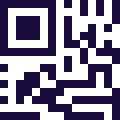
The three squares in the corners are the whole trick. They let a scanner find the symbol in a cluttered image and work out how it is rotated and tilted, which is why a QR code reads upside down, at an angle, and from a phone held casually — things a linear barcode will not tolerate.
The second design decision is error correction. A QR carries redundant data at one of four levels, and at the higher levels a substantial part of the symbol can be obscured, torn or printed over and the content still recovers intact. That is what makes it survivable on a poster, a windscreen or a worn asset tag.
Capacity is high enough to hold a URL, a block of text, Wi-Fi credentials or payment details — which is why it escaped industry and became the code the public actually uses.
Where you meet it
Everywhere: posters, payments, asset tags, Wi-Fi handover.
Can a phone scan a QR code?
Every phone can. What the keyboard adds is where the result goes: instead of opening a link or landing in a scanning app you have to copy out of, the decoded text is typed into the field you were already in.
How to scan it with your phone
- 1
Install Barcode & QR Scanner Keyboard from Google Play and enable it as a keyboard.
- 2
Open Settings → Scanning engine and choose TRAKWIND Scan.
- 3
Tap the barcode key on the keyboard and point the camera at the code.
The value is typed into whatever field you were already in — a spreadsheet, an ERP screen, a web form. There is nothing to integrate.
Read it with the phone in your pocket
Free on Google Play. No licence, no extra hardware, and nothing to connect.