Staging preview — not published. This page describes a format TRAKWIND Scan reads, so it stays unindexed until the release is confirmed.
GS1 DataBar
Omnidirectional, Truncated, Stacked, Stacked Omnidirectional
The small GS1 barcode built for items a full EAN will not fit on.
- Type
- Linear (1D), including stacked variants
- Encodes
- A 14-digit GTIN, and GS1 Application Identifiers in the Expanded variants
- Family
- Omnidirectional, Truncated, Stacked, Stacked Omnidirectional
- Standard
- GS1 General Specifications
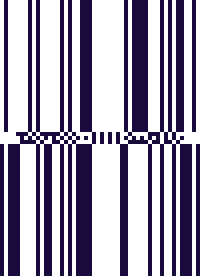
GS1 DataBar was designed for the things retail had outgrown: loose produce, a tray of mince, a small cosmetic item — goods where a full EAN-13 is simply too big for the label. It packs a GTIN into a fraction of the width, which is why you find it on the little sticker on an apple rather than on a cereal box.
The family matters more than the name. The Omnidirectional variants are built to be read from any angle at a supermarket checkout, which is why they are the ones you meet at the till. The Stacked variants split the code into two rows to fit a label that is wider than it is tall. Truncated trades some height for space on very small items.
What makes DataBar worth reading properly is that it is part of the GS1 system rather than a bare number. On variable-weight goods it travels with data the shop actually needs — the weight, the batch, the date — which a plain product code could never carry.
Where you meet it
The little sticker on loose apples and on a tray of mince. Carries GS1 data such as weight, batch and expiry.
Can a phone scan GS1 DataBar?
Most phone scanning apps cannot, because the engine they are built on does not support it. Barcode & QR Scanner Keyboard does once you select TRAKWIND Scan under Settings → Scanning engine. The value is typed straight into whatever field you are in, and because DataBar is GS1 data rather than a plain number, the app’s GS1 panel also breaks out the fields it carries.
How to scan it with your phone
- 1
Install Barcode & QR Scanner Keyboard from Google Play and enable it as a keyboard.
- 2
Open Settings → Scanning engine and choose TRAKWIND Scan.
- 3
Tap the barcode key on the keyboard and point the camera at the code.
The value is typed into whatever field you were already in — a spreadsheet, an ERP screen, a web form. There is nothing to integrate.
Related formats


Read it with the phone in your pocket
Free on Google Play. No licence, no extra hardware, and nothing to connect.