Staging preview — not published. This page describes a format TRAKWIND Scan reads, so it stays unindexed until the release is confirmed.
rMQR
rectangular Micro QR
A 2D code shaped like the labels it has to fit on: long and narrow.
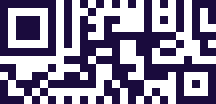
- Type
- Matrix (2D), rectangular
- Also called
- Rectangular Micro QR Code
- Built for
- Labels that are wide but not tall
- Standard
- ISO/IEC 23941
Square codes assume a square space. Plenty of labels do not have one: a cable tag, a thin strip along the edge of a module, the side of a component in a dense assembly. Putting a square QR on a strip like that means sizing it to the height, which wastes most of the length.
rMQR is the answer to that shape problem — a rectangular 2D code, standardised in ISO/IEC 23941, that spreads along the label instead of being constrained by its height. It carries meaningfully more than a Micro QR while still fitting where a square code cannot.
It is a newer symbology than most on this list, which is exactly why support for it is thin. Equipment and labelling systems have adopted it faster than scanning software has.
Where you meet it
Long, narrow labels — a cable tag, a thin strip down the side of a module.
Can a phone scan rMQR?
Very few can. rMQR is recent enough that most phone scanning engines have not implemented it, and a standard QR decoder will not recognise the rectangular format. TRAKWIND Scan reads it — select it under Settings → Scanning engine.
How to scan it with your phone
- 1
Install Barcode & QR Scanner Keyboard from Google Play and enable it as a keyboard.
- 2
Open Settings → Scanning engine and choose TRAKWIND Scan.
- 3
Tap the barcode key on the keyboard and point the camera at the code.
The value is typed into whatever field you were already in — a spreadsheet, an ERP screen, a web form. There is nothing to integrate.
Read it with the phone in your pocket
Free on Google Play. No licence, no extra hardware, and nothing to connect.